 Typeshelf











See it in under a minute.
A client sends a flyer and asks what the font is. You need English that matches a Hebrew logo. Your font folder holds three copies of everything.
The film shows how Typeshelf handles each one.
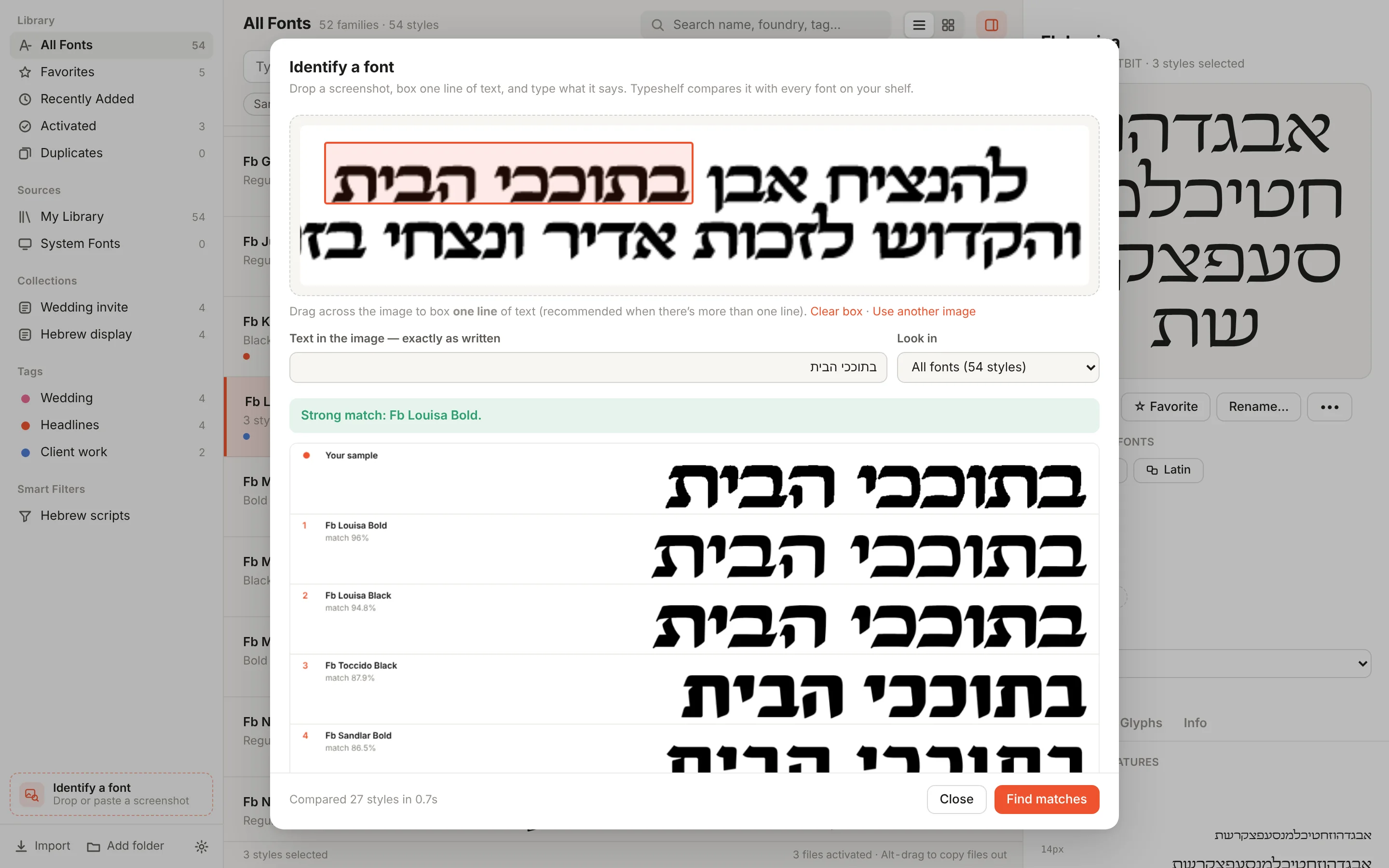
Name the font in any screenshot.
Drop or paste an image, box one line and type what it says. Typeshelf draws those words in every font you own and shows the closest matches side by side, right on your computer. Nothing is uploaded.
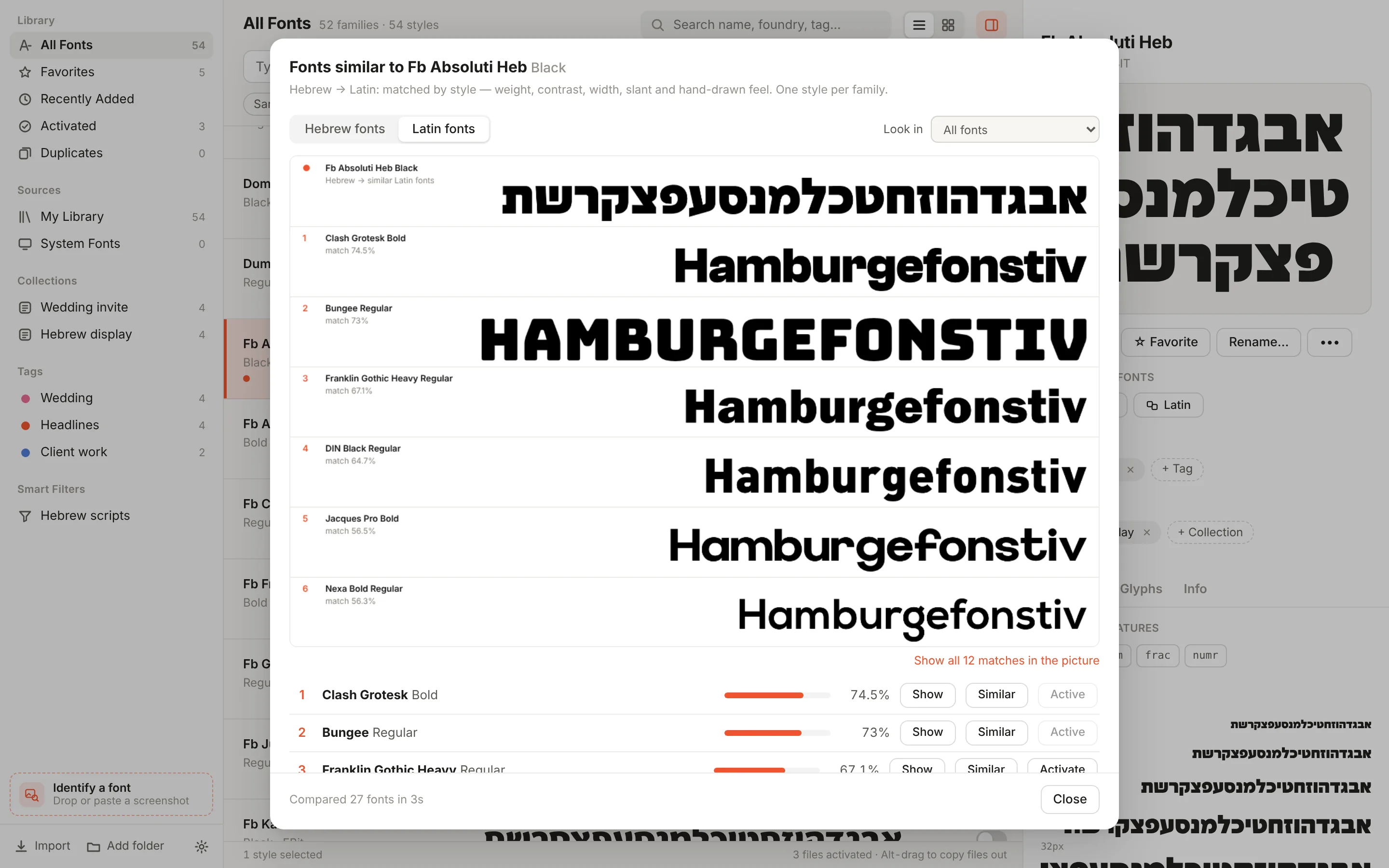
Find English that fits your Hebrew.
Pick any font and ask for similar ones, in Hebrew or in Latin. Typeshelf compares weight, contrast, width, slant and hand-drawn feel, so a Hebrew logo font gets Latin partners that look like family.
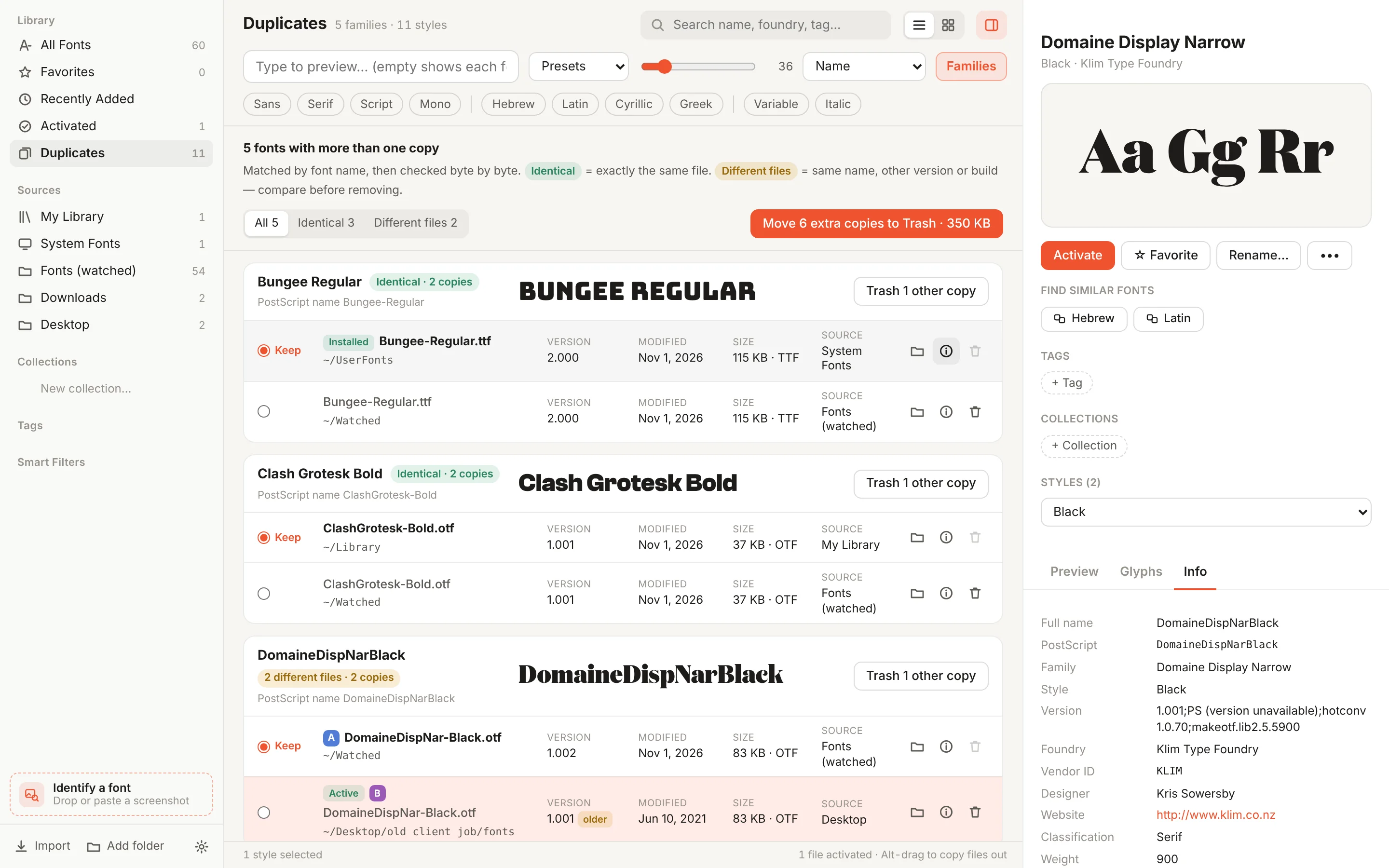
Clean up years of downloads.
Duplicates lists every copy of a font with its folder, version and date, and says which copies are identical files. Keep one and send the rest to the Trash. Tags, favorites and collections move to the copy you keep.
And the everyday things, done properly.
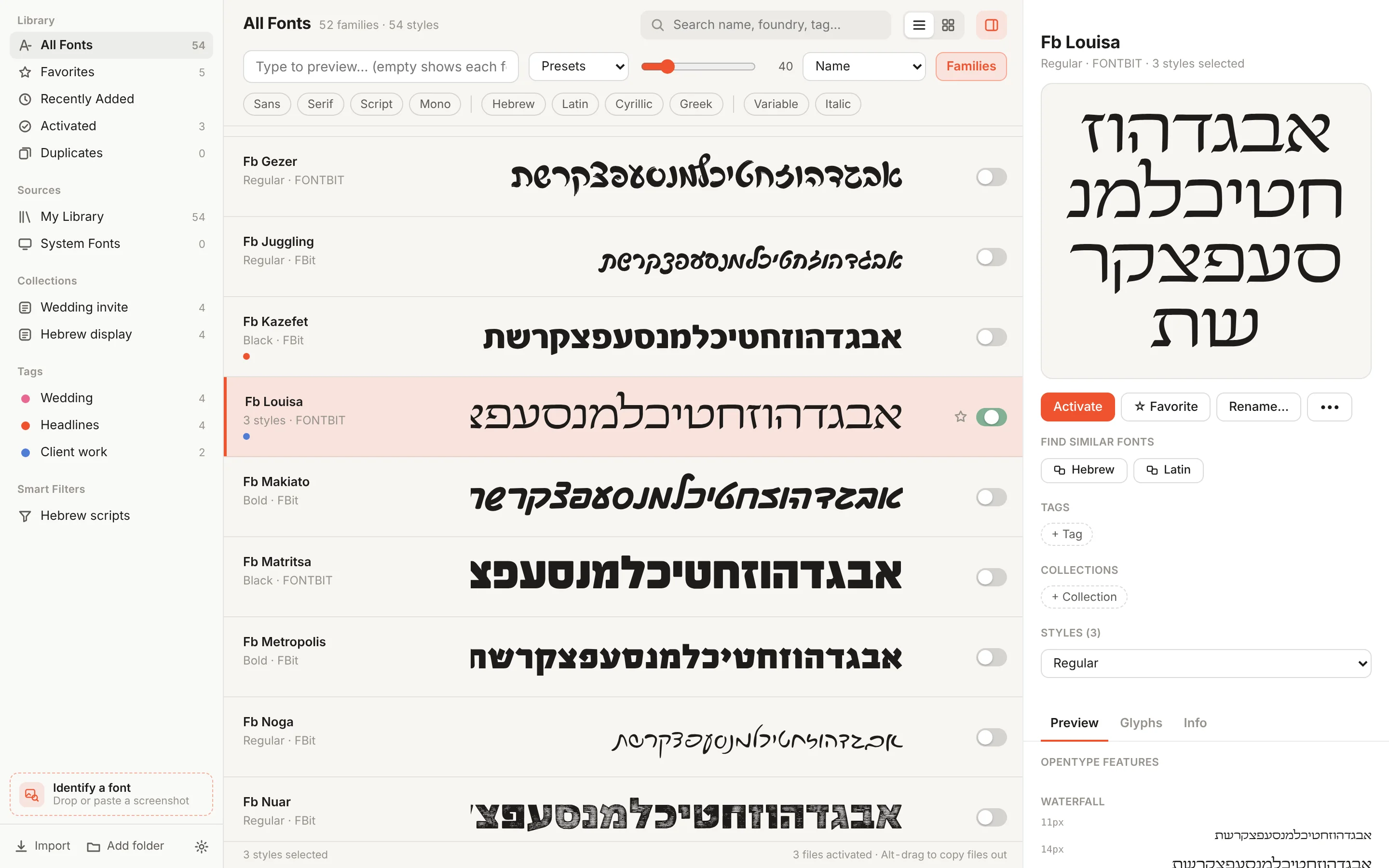
Previews in your words
Type your own text, or let Hebrew fonts show themselves in Hebrew.
One-click activation
Turn a font on for every app, and off again, without moving the file.
Tags and collections
Group fonts by client, job or mood. Favorites and smart filters too.
Rename files in bulk
Turn “font (3).ttf” into a tidy Family–Style name, with a preview and undo.
Inside InDesign
A Typeshelf panel with your collections. Click a font to apply it to the selection.
Works with Claude
Ask in plain words to find, sort or collect fonts, and Claude does it in Typeshelf.
Installing
Typeshelf isn’t signed with an Apple or Microsoft developer certificate yet, so the first launch needs one extra click. Your fonts and files stay on your computer.
Mac
Apple silicon (M1 or newer), macOS 11 or later
- Open Typeshelf-1.5.6.dmg and drag Typeshelf into Applications.
- Open Typeshelf. When macOS says it can’t check the app, click Done.
- Go to System Settings › Privacy & Security, scroll down and click Open Anyway. You only do this once.
Windows
Windows 10 or 11, 64-bit. No admin rights needed.
- Run Typeshelf-Setup-1.5.6.exe.
- If Windows says it protected your PC, click More info, then Run anyway.
- Open Typeshelf from the Start menu or the desktop shortcut.